Working in Windows using start menu? Desktop? Hell no.. This is my fav tool.
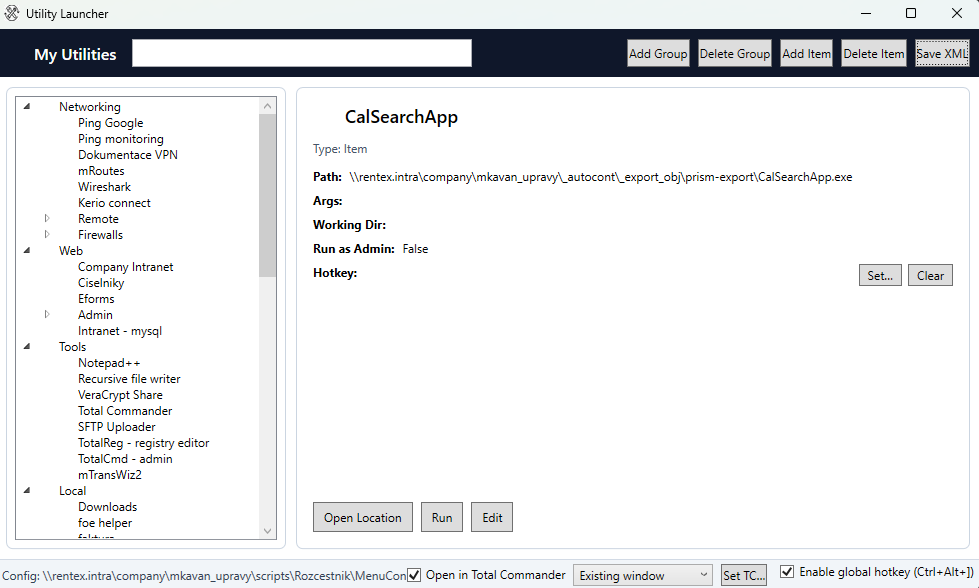
mRunUtil – Customizable Desktop Launcher & Utility Hub
A lightweight, fast, and keyboard-friendly Windows utility launcher designed for IT administrators, developers, and power users to centralize tools, scripts, network paths, and bookmarks.
Overview
mRunUtil acts as a unified command bridge that replaces cluttered desktops and fragmented shortcuts with an organized, searchable hierarchy. Powered by a straightforward XML configuration, it supports local drives, UNC corporate network shares, custom parameters, and deep integration with both Windows Explorer and Total Commander.
Key Features
📁 Hierarchical Organization
Structure utilities into multi-level, collapsible groups and sub-groups. Custom icons can be defined per group and per item for immediate visual recognition.
⚡ Universal Target Launching
Execute desktop applications (.exe), scripts (.bat, .ps1), MMC consoles, local/UNC shared folders, and web links (http:// / https://).
🔎 Live Instant Search
Type-as-you-go filtering searches item names, target paths, command-line parameters, and working directories with real-time tree expansion.
⌨️ Global & Item Hotkeys
Summon the app from any background window with Ctrl+Alt+] and assign system-wide shortcuts directly to frequently run utilities.
📂 Total Commander Integration
Auto-locates TOTALCMD.EXE (via registry/env). Offers native toggle between Windows Explorer and Total Commander with existing tab (/O) or new instance (/N) modes.
🖱️ Drag & Drop Reordering
Reorganize your tools on the fly by dragging items between groups or to the root level. All structure changes are automatically saved in the background.
Detailed Feature Capabilities
- Smart Launch vs. Open Location:
- For folders and network locations, double-clicking immediately opens the directory in your preferred file manager.
- For files, Open Location jumps to the parent folder and pre-selects the file in Explorer or opens it in Total Commander.
- For web links, URLs always open in your system default browser.
- Advanced Launch Parameters:
- Full support for command-line arguments (e.g.
args="/v:10.0.0.72"for RDP). - Dedicated Working Directory field to ensure scripts execute from their correct base.
- Environment variable expansion (e.g.
%SystemRoot%,%APPDATA%). - Run as Administrator flag (uses Windows UAC
runaselevation).
- Full support for command-line arguments (e.g.
- Integrated Visual Editor:
- Add, edit, or delete items and groups directly inside the interface without touching raw XML.
- Safety lock: editing and drag-and-drop are disabled while search filter is active to prevent accidental subset overwrites.
- Node count confirmation when deleting groups to prevent accidental batch loss.
- Network-Ready & Portable:
- Point configuration to a central shared UNC path (e.g.,
\\server\share\MenuConfig.xml) to distribute a standardized IT toolbox to team members.
- Point configuration to a central shared UNC path (e.g.,
Keyboard Shortcuts & Navigation
| Key Combination | Context | Action |
|---|---|---|
| Ctrl + Alt + ] | Global (Any App) | Bring mRunUtil to front and select the search bar (fallback: Ctrl+Alt+Space) |
| Down Arrow / Tab | Search Box | Immediately focus the first matching item in the tree |
| Enter | Tree Item | Execute / launch the selected item |
| Tab | Tree Item | Return cursor focus back to the search bar |
| Delete | Tree Item / Group | Delete the selected item or group (with confirmation) |
Configuration Example (MenuConfig.xml)
The menu structure is defined in a readable XML file:
<?xml version="1.0" encoding="utf-8"?>
<Menu title="IT Utilities" icon="Assets/app.ico">
  <Group name="Networking">
    <Item name="Ping Gateway" path="%SystemRoot%\System32\cmd.exe" args="/c ping 10.0.0.1" />
    <Item name="Wireshark" path="C:\Program Files\Wireshark\wireshark.exe" hotkey="Ctrl+Alt+W" />
    <Item name="Router Admin" path="https://10.0.0.1" />
  </Group>
  <Group name="Admin">
    <Item name="PowerShell (Admin)" path="%SystemRoot%\System32\WindowsPowerShell\v1.0\powershell.exe" runAsAdmin="true" />
    <Item name="Shared Scripts" path="\\server\share\scripts\" />
  </Group>
</Menu>